User Manual
The complete guide to the NAAM Platform — learn how to use every feature step by step.
1. Introduction
IntroductionWelcome to the NAAM Platform — the comprehensive platform for managing members, achievers, programmes and events. The platform empowers members to interact with content, apply for programmes and events, and track their achievements.
Provide a unified digital environment that connects members with development and achievement opportunities within an organised and integrated system.
Members, Achievers, Youth Leaders, Experts, Partners, and Media representatives.
Multilingual
Arabic · English · French · SpanishResponsive
Web & MobileSecure
Roles & PermissionsCloud
Available 24/7Supported Languages
2. Login & Account Access
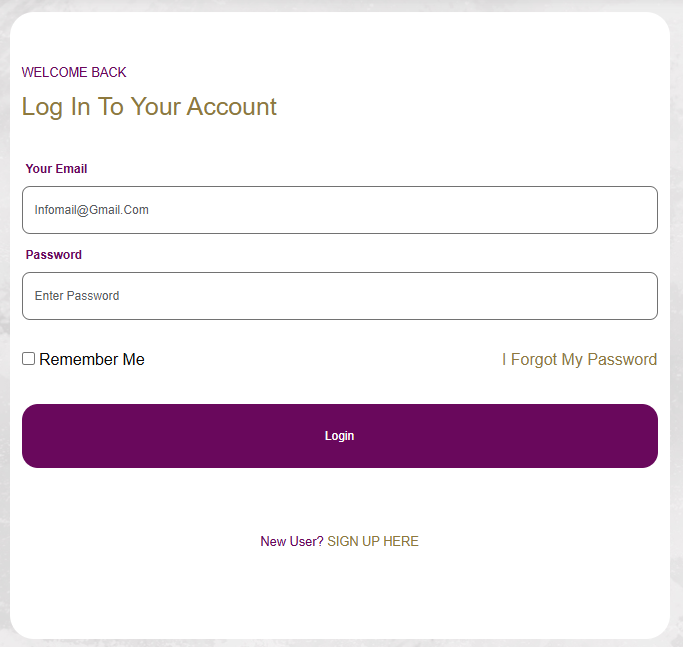
Login & Account AccessLogin Steps
- 1
Go to the Login Page
Open your browser, navigate to the site, then click the "Login" link in the top navigation bar.
- 2
Enter Your Credentials
Enter your registered email address and password in the provided fields.
- 3
Click "Sign In"
Click the Login button. You will be redirected automatically to the dashboard or home page.
- 4
Email Verification (New Accounts)
If your account is new, check your email and click the activation link before logging in.
Create a New Account
- 1
Go to the Registration Page
Click the "Register" link in the navigation bar or at the bottom of the login form.
- 2
Fill in the Registration Form
Enter your full name, email address, password, and nationality. All fields are required.
- 3
Activate Your Account
You will receive an email containing an activation link. Click it to activate your account and start using the platform.
Forgot Your Password?
- 1
Click "Forgot Password"
On the login page, click the "Forgot your password?" link below the login form.
- 2
Enter Your Email Address
Enter the email address associated with your account.
- 3
Follow the Reset Link
You will receive an email with a password reset link. The link is valid for a limited time.
- 4
Enter a New Password
Enter a strong new password twice to confirm, then save the changes.
3. Dashboard Overview
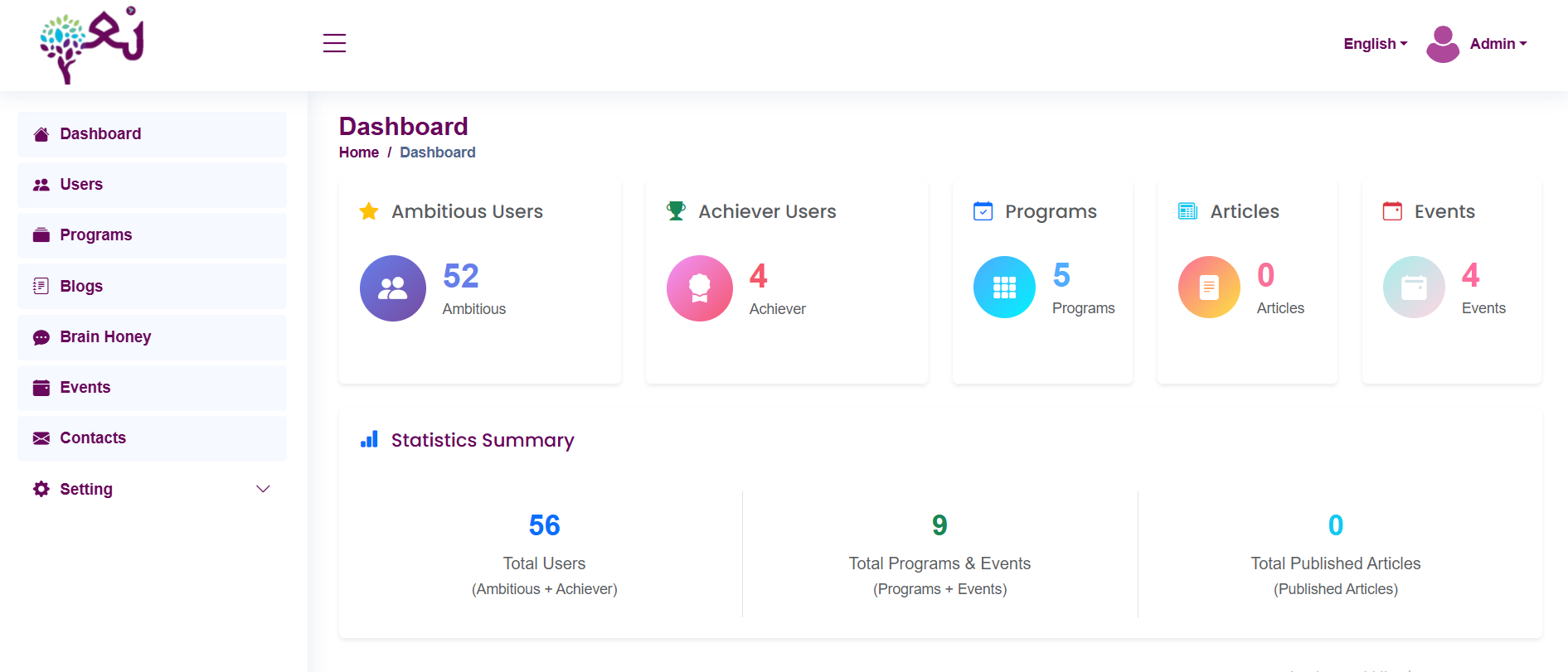
Dashboard OverviewMain Interface Components
Sidebar Menu
Contains all section links accessible based on your role. It can be collapsed to expand the content area.
Summary Cards
Displays quick statistics such as the number of members, programmes, and active events.
Notifications
Alerts for new events, subscription requests, and system changes.
Account Menu
Contains links to edit profile, change password, and logout.
4. System Features
System FeaturesProfile Management
Edit your personal information, profile picture, contact details, and change your password.
Programmes & Events
Browse available programmes and events and apply for participation with ease.
Achievers
View the achievers list, accomplishments, and certificates awarded to members.
Magazine & Blog
Read articles and knowledge content in the magazine and Brain Honey blog.
NAAM Song
Listen to the platform anthem and share it within the community.
Social Affiliation
Interact with the platform community through the social affiliation page.
Contact & Support
Send your enquiries and suggestions directly to the team via the contact form.
About the Organisation
Learn about the platform's mission, vision, and goals from the "About Us" page.
How to Edit Your Profile
- 1
Open the Account Menu
Click your name or avatar in the top navigation bar to open the options menu.
- 2
Select "Edit Profile"
Click the "Edit Profile" link from the dropdown menu.
- 3
Update Your Data
Modify the required fields such as name, profile picture, and contact information.
- 4
Save
Click the "Save Changes" button to confirm edits. A confirmation message will appear on success.
How to Apply for a Programme or Event
- 1
Browse Programmes & Events
Navigate to the "Programmes & Events" section from the top navigation bar.
- 2
Choose a Programme
Click on the programme or event you wish to join to view its details.
- 3
Submit an Application
Click the "Apply for Programme" button and fill in the required form.
- 4
Track Application Status
You can monitor your application status from your profile or wait for an email notification.
5. Roles & Permissions
Roles & PermissionsThe system operates on a roles and permissions model. Each user is assigned a role that determines what they can see and do within the platform.
Super Admin
- Full system control
- Manage roles and permissions
- Full platform settings
- Access all sections
Admin
- Manage content and users
- Manage programmes and events
- View reports and statistics
- Manage general settings
Member
- Edit personal profile
- Apply for programmes and events
- Read content
- Contact via form
Achiever
- View achievers page
- Manage achievement profile
- Same permissions as member
Youth Leader
- Manage youth leadership content
- Manage chapters and groups
- Same permissions as member
Expert
- Manage expert profile
- Participate in programmes
- Same permissions as member
Partner
- Manage partnership data
- View offers and benefits
- Same permissions as member
Media
- Manage media content
- Publish news and articles
- Same permissions as member
External
- Limited content access
- Browse public information
- Contact via form
6. Data Management
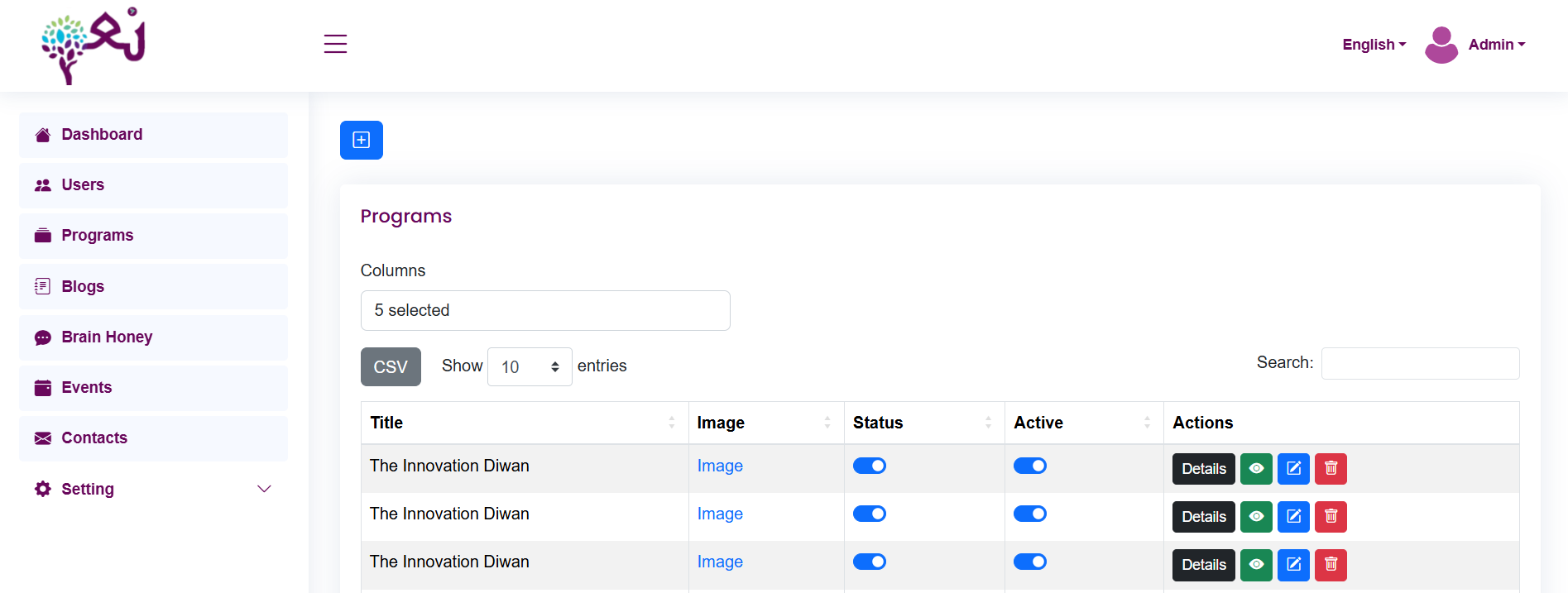
Data Management| Operation | How to Perform It | Who Can Execute It |
|---|---|---|
| Add | Click the "Add New" or "+" button at the top of the table or section, complete the form and save. | Admin, Super Admin, and roles with create permission |
| Edit | Click the pencil icon ✏️ next to the record you want to modify, update the fields and save. | Admin, Super Admin, and the user for their own personal data |
| Delete | Click the trash icon 🗑️ next to the record, then confirm deletion in the confirmation dialog. | Admin and Super Admin only |
| Search | Use the search field at the top of the table or section along with the available filter options. | All authorised users for that section |
| Filter | Use the filter dropdowns to narrow results — e.g. filter by status, date, or type. | All authorised users for that section |
| Export | Click the "Export" button to download data as Excel or PDF depending on the section. | Admin and Super Admin |
7. Common Issues & Solutions
Common Issues & Solutions8. Technical Support
Technical SupportThe technical support team is available to assist you with any enquiry or issue you encounter while using the platform. You can reach us through any of the following channels:
naam@dnci.net
Phone
+961 5 953 741
Contact Form
Send your enquiries directly
Follow us on LinkedIn
Last updated: July 2026 | Version 1.0
9. Magazine, Events & Programs, and Brain Honey
Exploring Featured ContentMagazine
The Magazine is a dedicated space for sharing articles, stories, news, and updates related to the NAAM Platform and its community. Here you can discover inspiring content, success stories from members, and latest announcements.
Key features of the Magazine:
Browse Articles: Explore a curated collection of articles and stories.
Search & Filter: Find articles by category, author, or publication date.
Save Articles: Bookmark your favorite articles to read later.
Share Content: Share articles on social media platforms.
Events & Programs
Events & Programs is the central hub for discovering and managing upcoming events, workshops, training programs, and webinars. This section allows you to view event details, register for programs, and track your participation.
Key features of Events & Programs:
Browse Events: View all upcoming events and programs with dates, times, and locations.
Registration: Enroll in events and programs directly through the platform.
Attend Virtually or Physically: Select your preferred attendance method.
Track Status: Monitor your registration status and receive confirmations.
Calendar View: View events in calendar format for better planning.
Brain Honey
Brain Honey is an advanced learning and knowledge management platform integrated within NAAM. It offers a rich repository of educational resources, courses, and learning materials designed to support your personal and professional development.
Key features of Brain Honey:
Course Library: Access organized learning paths and educational courses.
Learning Materials: Download books, guides, videos, and interactive resources.
Progress Tracking: Monitor your learning progress and completion status.
Certifications: Earn certificates upon completing courses and assessments.
Interactive Content: Participate in quizzes, assignments, and discussions.